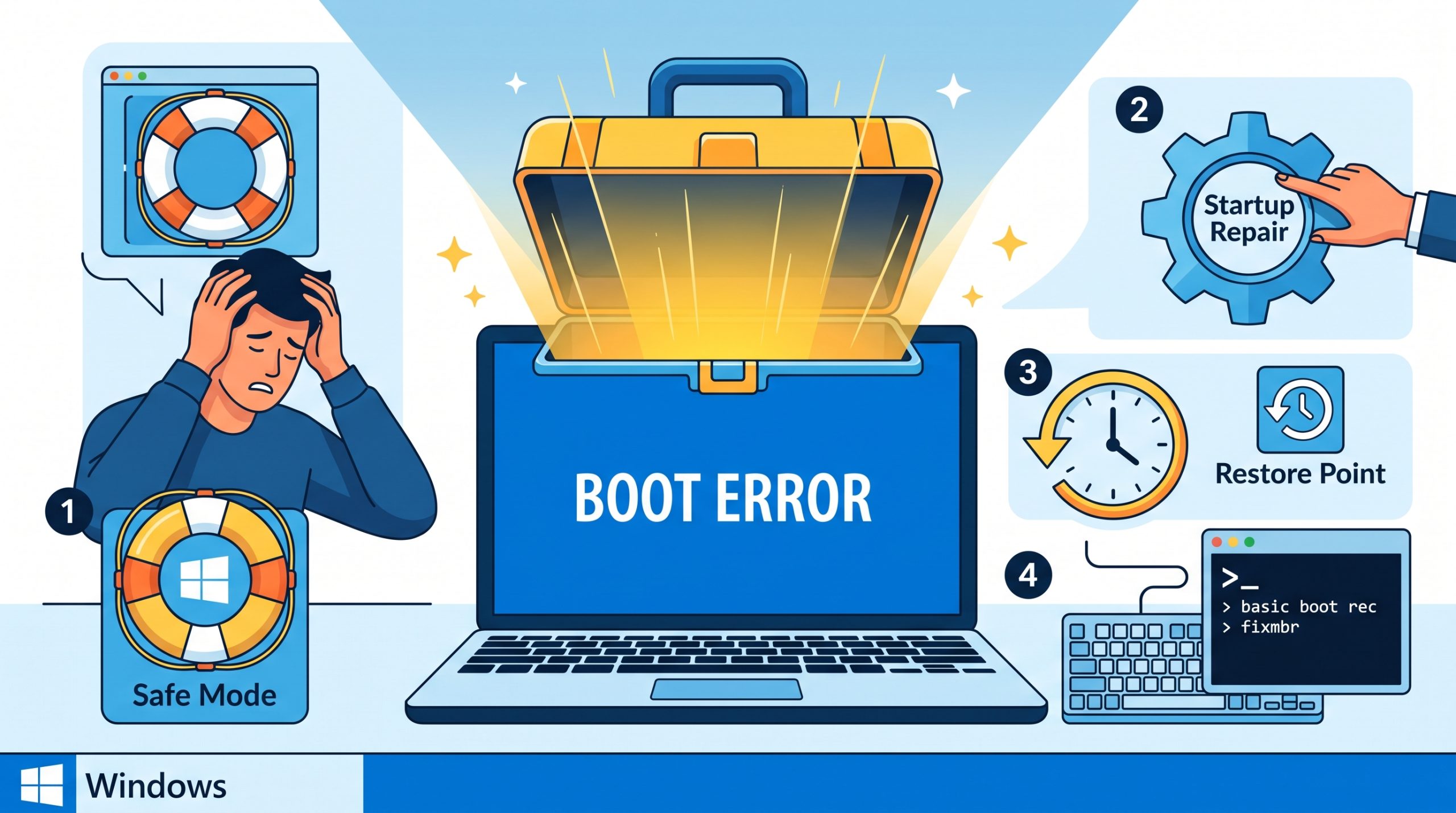
A Windows PC that refuses to boot is a nerve-wracking experience. Before you start worrying about data loss or expensive repairs, know that the vast majority of boot failures are fixable at home using Windows’ built-in recovery tools. This guide walks you through every scenario.
Identifying Your Boot Problem
Different boot failures require different solutions. Identify which applies to you:
- Black screen with cursor — Display or driver issue
- Stuck on Windows logo/spinning dots — Corrupted system files or failed update
- Blue Screen of Death (BSOD) on boot — Driver or hardware issue
- Automatic Repair loop — Corrupted boot configuration
- “No boot device found” — BIOS/drive issue
Fix 1: Force a Full Shutdown and Restart
Hold the power button for 10 seconds to force shutdown. Wait 30 seconds, then power on. This clears memory and resolves many boot issues caused by a failed Windows session.
Disconnect all external devices (USB drives, external hard drives, printers) before rebooting. External devices can sometimes interfere with the boot process.
Fix 2: Boot into Windows Recovery Environment (WinRE)
If Windows fails to boot 3 times in a row, it automatically opens the Windows Recovery Environment (WinRE). You can also force it manually:
Interrupt boot 3 times
Turn on your PC and press the power button to turn it off as soon as the Windows logo appears. Repeat 3 times.
Access Troubleshoot options
On the fourth boot, Windows opens WinRE. Navigate to Troubleshoot > Advanced Options.
Run Startup Repair
Select Startup Repair and let Windows attempt to automatically fix the boot issue.
Also try Safe Mode
From WinRE, go to Troubleshoot > Advanced Options > Startup Settings > Restart, then press 4 to boot into Safe Mode. If Windows boots in Safe Mode, a driver or software is the culprit.
Fix 3: Use Startup Repair from a Windows USB Drive
If you can’t access WinRE, boot from a Windows USB installation drive:
- Create a Windows 10/11 bootable USB from another PC using Microsoft’s Media Creation Tool
- Insert the USB, restart, and enter BIOS (press F2, F10, or Del during startup)
- Change the boot order to USB first
- Choose Repair your computer (not Install) at the Windows setup screen
- Go to Troubleshoot > Advanced Options > Startup Repair
Fix 4: Rebuild Boot Configuration Data (BCD)
Corrupted boot configuration data (BCD) is a very common boot failure cause. From WinRE, open Command Prompt and run:
bootrec /fixmbr

bootrec /fixboot

bootrec /scanos

bootrec /rebuildbcd
When asked to add installations to boot list, type Y and press Enter. Then restart.
Fix 5: Run SFC in Recovery Mode
From the WinRE Command Prompt, run System File Checker targeting the offline Windows installation:
sfc /scannow /offbootdir=C: /offwindir=C:WindowsNote: The drive letter may be different in recovery mode — type diskpart then list vol to see available drives.
Fix 6: System Restore or Uninstall Recent Updates
If boot problems started after a Windows update or software install:
- From WinRE Advanced Options, choose System Restore to revert to a previous working state
- Or choose Uninstall Updates and try removing the latest quality update or feature update
System Restore does not affect your personal files (documents, photos, etc.) but will remove apps and drivers installed after the restore point.
Fix 7: Reset Windows While Keeping Your Files
If nothing else works, resetting Windows almost always fixes boot problems. You can choose to keep all your personal files.
Access WinRE
Use the boot interruption method from Fix 2.
Choose Reset this PC
Go to Troubleshoot > Reset this PC.
Keep my files
Select Keep my files — this reinstalls Windows but preserves your documents, photos, and other personal files. Apps and settings will be removed.
PC booting again? Keep it running smoothly:
zSmartFix Editorial Team
Step-by-step technical guides tested on real hardware. Our guides are independently written and freely accessible to everyone.
Leave a Reply