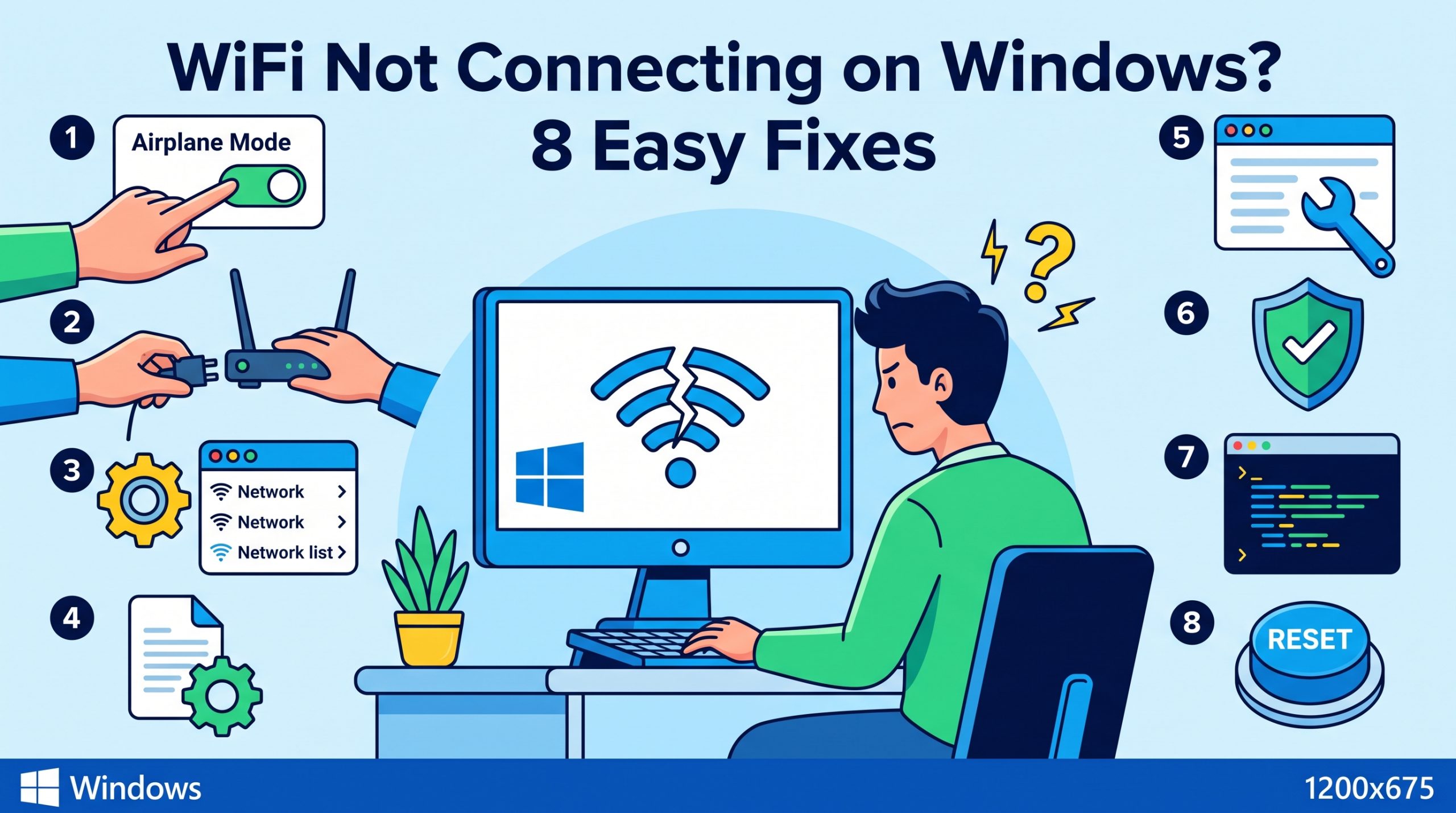
WiFi problems on Windows are incredibly common — and incredibly frustrating, especially when other devices connect just fine. The root cause can range from a simple network glitch to a driver issue or DNS misconfiguration. Let’s start with the simplest fixes and work up from there.
Check if other devices (phone, tablet) can connect to the same WiFi. If they can’t either, the problem is with your router or ISP — not Windows. Restart your router first.
Fix 1: Forget and Reconnect to the Network
Saved WiFi credentials can become corrupted. Forgetting the network and reconnecting fresh fixes this.
Open WiFi settings
Click the WiFi icon in the taskbar. Click the arrow (chevron) next to your network name.
Click Forget
Select Forget from the options that appear.
Reconnect
Click your network name again, enter the WiFi password, and reconnect.
Fix 2: Restart the Router and Your PC
This solves more WiFi problems than any other fix. Unplug your router’s power cable, wait 30 full seconds, then plug it back in. Wait 2 minutes for it to fully restart, then restart your Windows PC.
Fix 3: Run the Network Troubleshooter
Right-click the WiFi icon
Right-click the WiFi icon in the system tray and select Troubleshoot problems.
Follow the prompts
Windows will automatically diagnose and often fix the issue. Apply any suggested fixes.
Fix 4: Flush DNS and Reset Network Stack
This is one of the most powerful fixes for “connected but no internet” issues. Open Command Prompt as Administrator and run each command:
netsh winsock reset

netsh int ip reset

ipconfig /release

ipconfig /flushdns

ipconfig /renew
Restart your PC after running these commands. This clears all cached network data and resets network components to defaults.
Fix 5: Update or Reinstall the WiFi Driver
An outdated or corrupted WiFi driver is a common cause of connectivity issues.
Open Device Manager
Press Win + X and select Device Manager.
Expand Network Adapters
Find your WiFi adapter (usually named something like “Intel Wireless” or “Realtek WiFi”).
Update or Reinstall
Right-click the adapter and try Update driver. If that doesn’t help, select Uninstall device, then restart your PC — Windows will reinstall the driver automatically.
Fix 6: Change Your DNS Server
Your ISP’s DNS server may be slow or down. Switching to Google or Cloudflare DNS often fixes “connected but no internet” issues.
Open WiFi properties
Go to Settings > Network & Internet > WiFi > Hardware Properties.
Edit DNS server
Click Edit next to DNS server assignment. Switch to Manual and set:
- Preferred DNS:
8.8.8.8(Google) or1.1.1.1(Cloudflare) - Alternate DNS:
8.8.4.4(Google) or1.0.0.1(Cloudflare)
Fix 7: Disable VPN or Proxy
A VPN connection or misconfigured proxy can block internet access.
- Go to Settings > Network & Internet > VPN and disconnect any active VPN
- Go to Settings > Network & Internet > Proxy and make sure all proxy settings are Off
Fix 8: Disable IPv6
Some networks have IPv6 compatibility issues with Windows. Disabling it can resolve connectivity problems.
- Go to Control Panel > Network and Sharing Center > Change adapter settings
- Right-click your WiFi adapter and select Properties
- Uncheck Internet Protocol Version 6 (TCP/IPv6)
- Click OK and try reconnecting
Start with Fix 2 (restart router) and Fix 4 (network reset commands) — these two fixes solve the majority of Windows WiFi problems. If you see “Connected, no internet,” try Fix 6 (change DNS) — it’s extremely effective for that specific issue.
WiFi working now? Check out more Windows fixes:
zSmartFix Editorial Team
Step-by-step technical guides tested on real hardware. Our guides are independently written and freely accessible to everyone.
Leave a Reply