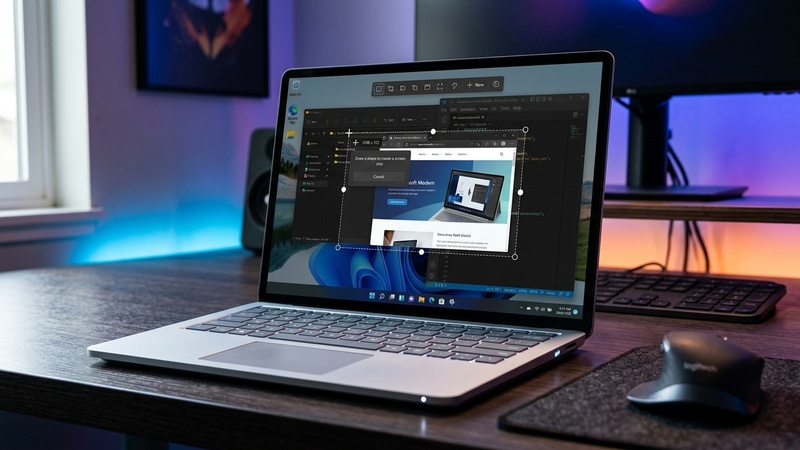

Method 1: Print Screen (PrtSc) — Full Screen to Clipboard
Press the PrtSc key (usually top-right area of keyboard) to copy a screenshot of your entire screen to the clipboard. Then paste it (Ctrl + V) into Paint, Word, an email, or any app that accepts images. Note: No file is automatically saved.
Method 2: Win + PrtSc — Full Screen Auto-Save
Press Win + PrtSc simultaneously. The screen dims briefly to confirm the capture. The screenshot is automatically saved as a PNG to:
C:UsersYourUsernamePicturesScreenshotsFiles are named sequentially (Screenshot (1).png, Screenshot (2).png, etc.). This is the fastest way to save full-screen shots.
Method 3: Alt + PrtSc — Active Window Only
Press Alt + PrtSc to capture only the currently focused window — not the entire screen. The image is copied to your clipboard. Paste into any image app to save. Useful for capturing a specific dialog box or application window.
Method 4: Win + Shift + S — Snipping Tool (Best All-Around)
Press Win + Shift + S to open the capture toolbar at the top of your screen. You get 4 capture modes:
- Rectangular Snip — Click and drag to select any rectangular area
- Freeform Snip — Draw any shape around what you want to capture
- Window Snip — Click any window to capture it neatly
- Full Screen Snip — Capture everything on all monitors
After capturing, a notification appears in the bottom right. Click it to open in Snipping Tool where you can annotate, crop, draw, and then save or copy the image.
Method 5: Snipping Tool App — Delayed Screenshots
Search for Snipping Tool in the Start Menu to open the full application. This adds a crucial feature: screenshot delay (3 or 10 seconds). This gives you time to open a menu, hover over an element, or position things before the capture happens — perfect for tooltips and context menus that disappear when you press keyboard shortcuts.
Method 6: Xbox Game Bar — Gaming Screenshots
Press Win + G to open the Xbox Game Bar overlay. Click the camera icon to take a screenshot, or use Win + Alt + PrtSc as a direct shortcut. Game Bar screenshots save to:
C:UsersYourUsernameVideosCapturesThis works well for games and other full-screen apps where other methods might not capture properly.
Quick Comparison: Which Method to Use When
- Fastest full-screen save: Win + PrtSc
- Capture a specific area: Win + Shift + S → Rectangular Snip
- Capture tooltips, menus, dropdowns: Snipping Tool app with delay
- Annotate and share immediately: Win + Shift + S, then click the notification
- Gaming/full-screen apps: Win + Alt + PrtSc (Game Bar)
Win + Shift + S is the most versatile screenshot tool for everyday use. It lets you capture exactly what you need, annotate it, and share directly — without ever opening another application.
More Windows tips and tricks:
zSmartFix Editorial Team
Step-by-step technical guides tested on real hardware. Our guides are independently written and freely accessible to everyone.
Leave a Reply