
- Understanding Bank Reconciliation in Odoo
- Step 1: Connecting Bank Feeds or File Import
- Step 2: Mastering the Odoo Reconciliation Tool
- Step 3: Setting Up Automated Reconciliation Models
- Step 4: Handling Complex Bank Scenarios & Fees
- Step 5: Multi-Currency & Exchange Rate Gains/Losses
- Step 6: Bank Reconciliation Audit & Monthly Closing
1. Understanding Bank Reconciliation in Odoo
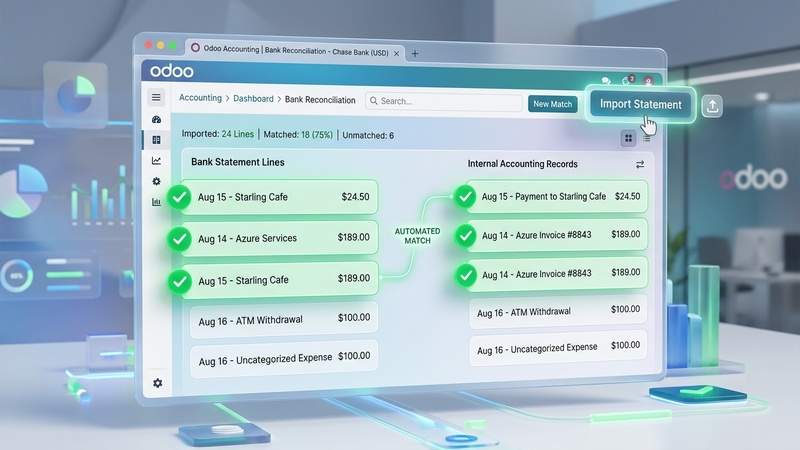
Bank reconciliation is the process of matching external bank statement transactions against internal accounting records (customer invoices, vendor bills, and manual payments). Accurate reconciliation guarantees that your balance sheet reflects true liquid cash.
Odoo simplifies this by using an interactive split-view Reconciliation Widget. Left-hand lines represent bank statement feeds, while right-hand cards show matching invoices, bills, or payment transactions suggested by Odoo’s matching engine.
Step 1: Connecting Bank Feeds or File Import
Odoo provides two methods to feed statement lines into your accounting database:
Method A: Automated Online Bank Synchronization
Add Bank Account
Go to Accounting Dashboard > Configuration > Add a Bank Account.
Authenticate Bank Institution
Search for your financial institution (supported via Plaid, SaltEdge, or Yodlee). Authenticate securely. Odoo fetches transaction feeds automatically every 24 hours.
Method B: Manual Statement Import (OFX, QBO, CAMT, CSV)
Download File from Online Banking
Export your bank statement file in OFX, QBO, CAMT.053, or CSV format.
Import File into Odoo
Go to Accounting Dashboard > Bank Journal > Import Statements. Upload the file. Odoo parses statement date, description, reference, and amount automatically.
Step 2: Mastering the Odoo Reconciliation Tool
On your Accounting Dashboard, click Reconcile X Items on the Bank Journal card. The reconciliation workspace opens:
- Match Selection: Select a statement line on the left. Odoo auto-highlights candidate invoices with matching dollar amounts and partner names.
- Validate Action: When the green match bar displays 0.00 Balance Difference, click Validate (or press
Spacebar). Odoo posts the reconciliation entry instantly. - Partial Payments: If a customer pays $500 towards a $1,200 invoice, Odoo applies $500 to the invoice, marks the invoice as Partially Paid, and leaves $700 outstanding.
Step 3: Setting Up Automated Reconciliation Models
Automate recurring transactions (rent, merchant processing fees, utility bills, bank charges) so you never classify them manually again.
Go to Accounting > Configuration > Reconciliation Models. Click New:
Model Name: Merchant Gateway Fee (Stripe/PayPal)

Type: Rule to suggest counter-part entry

Label Condition: Contains "Stripe Fee" OR "Merchant Charge"

Action:

  • Account: 650100 Merchant Processing Fee Expense

  • Amount Type: Percentage of Balance (100%)

  • Tax: 0%
Step 4: Handling Complex Bank Scenarios & Fees
Scenario: Wire Transfer Fee Deduction
A client owes $1,000 for Invoice #1042. They wire payment, but the intermediary bank deducts a $25 wire fee, resulting in an incoming bank statement line of $975.
Select Statement Line ($975)
In the reconciliation tool, select the incoming $975 line.
Select Original Invoice #1042 ($1,000)
Click Invoice #1042 on the right. Odoo alerts: -$25.00 Balance Difference.
Click “Manual Operations” / Apply Fee Rule
Click Manual Operations, choose Account 650000 Bank Wire Fees, and enter 25.00. The balance difference becomes $0.00. Click Validate.
Step 5: Multi-Currency & Foreign Exchange Adjustments
If your bank operates in USD but you bill an international client in Euros (EUR):
- Odoo automatically fetches real-time central bank exchange rates
- During reconciliation, Odoo calculates the exact USD value on payment date vs invoice date
- Any discrepancy is automatically posted to
750000 Exchange Gainor670000 Exchange Loss
Step 6: Bank Reconciliation Audit & Monthly Closing
To verify bank reconciliation completion at month-end:
- Go to Accounting > Reporting > Bank Reconciliation Report
- Verify Computed Balance in Odoo equals Last Statement Balance
- Check for any un-reconciled outstanding checks or uncleared deposits
zSmartFix Editorial Team
Step-by-step technical guides tested on real hardware. Our guides are independently written and freely accessible to everyone.
Leave a Reply