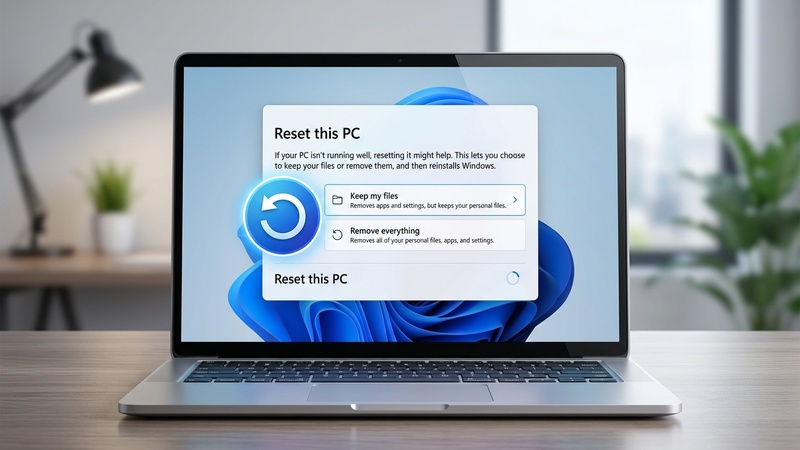

Even with “Keep my files” selected, always back up your most important documents and photos to an external drive or cloud storage before resetting. This is your insurance policy if anything goes wrong.
What “Reset This PC” Actually Does
A Windows reset reinstalls the operating system. When you choose “Keep my files,” Windows:
- ✅ Keeps: All files in your user folders — Documents, Pictures, Downloads, Music, Videos, Desktop
- ❌ Removes: All installed applications and programs (you’ll need to reinstall these)
- ❌ Removes: All custom system settings and preferences
- ❌ Removes: Third-party drivers installed after the original Windows setup
When you choose “Remove everything,” it wipes everything — files, apps, settings — for a completely fresh start.
When Should You Reset?
- Windows is extremely slow even after other optimizations
- Persistent errors that survive SFC, DISM, and driver updates
- Stubborn malware that won’t be removed by antivirus tools
- Preparing a PC to sell, donate, or give to someone else
- After a major Windows version upgrade that caused system instability
Method 1: Reset from Windows Settings (PC is Booting)
Open Windows Settings
Press Win + I to open Settings.
Find Recovery settings
Windows 11: System > Recovery > Reset this PC
Windows 10: Update & Security > Recovery > Reset this PC
Click “Reset PC”
Click the Reset PC button (Windows 11) or Get started button (Windows 10).
Choose “Keep my files”
Select Keep my files to preserve your personal files while reinstalling Windows from scratch.
Choose the reinstall source
You have two options:
- Cloud download (Recommended) — Downloads a fresh copy of Windows directly from Microsoft. Slower (requires good internet) but guaranteed clean install without any existing corruption.
- Local reinstall — Uses existing Windows files on your PC. Faster and works offline, but may preserve some underlying issues.
Review the settings and click Reset
You’ll see a summary of what will be removed. Click Reset. Your PC will restart and begin the process — this takes 30-60 minutes. Do not turn off the PC.
Method 2: Reset from Recovery Environment (PC Won’t Boot)
Access WinRE
Interrupt the boot process 3 times (hold power button during Windows logo) to trigger the Windows Recovery Environment.
Navigate to Reset
Choose Troubleshoot > Reset this PC.
Follow the same steps
Choose Keep my files > Cloud download > Reset. The process is identical from here.
After the Reset: What To Do First
- Run Windows Update — Go to Settings > Windows Update and install everything immediately
- Reinstall your essential apps — Note: all installed programs were removed
- Check your files — Verify Documents, Pictures, and Desktop are all intact
- Enable File History — Settings > Update & Security > Backup > Add a drive
- Install your drivers — GPU, printer, and other device drivers may need reinstalling
A Windows Reset with Cloud download solves virtually every software-related problem, including malware, severe corruption, and performance issues. If problems continue after a reset, the cause is almost certainly hardware — not software.
After resetting, optimize your fresh Windows install:
zSmartFix Editorial Team
Step-by-step technical guides tested on real hardware. Our guides are independently written and freely accessible to everyone.
Leave a Reply