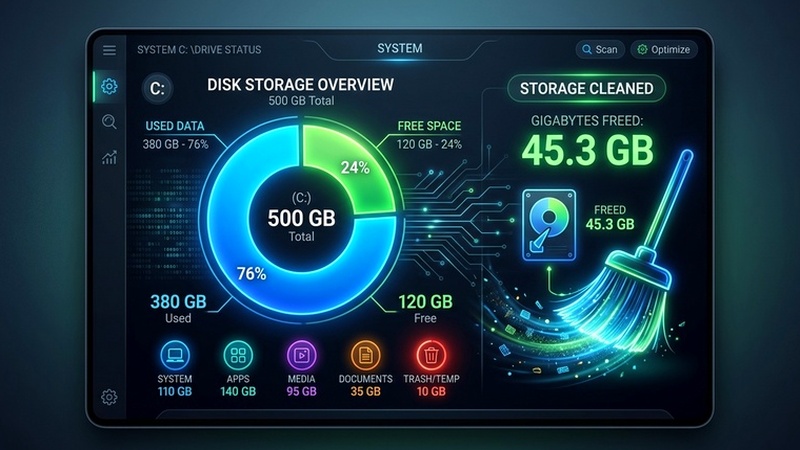

PC cleaning software is heavily marketed but often unnecessary. The truth is Windows includes powerful built-in cleaning tools that do the job just as well — and you know exactly what they’re deleting, which is more than you can say for most third-party cleaners. Here is the complete built-in cleaning routine.
1. Disk Cleanup — The Main Event
Disk Cleanup is Windows’ primary junk file removal tool.
Run Disk Cleanup as Administrator
Press Win + S, search “Disk Cleanup”, right-click the result, and choose Run as administrator. Select your C: drive.
Click “Clean up system files”
This expands the list to include Windows Update Cleanup, Windows Upgrade Log Files, and more. Can free 5-15GB.
Check everything you want to clean
Recommended: Temporary files, Windows Update Cleanup, Delivery Optimization Files, Downloaded Program Files, Recycle Bin, Thumbnails.
2. Storage Sense — Automatic Ongoing Maintenance
- Go to Settings > System > Storage
- Turn on Storage Sense
- Click “Configure Storage Sense” and set:
- Run Storage Sense: Every month
- Delete files in my Recycle Bin if they have been there for: 30 days
- Delete files in my Downloads folder if they haven’t been opened for: 60 days
3. Clear Temp Folders Manually
Windows has two temp folder locations that accumulate obsolete files:
User Temp folder
Press Win + R, type %temp%, press Enter. Select all (Ctrl + A), delete. Skip files that say “in use.”
Windows Temp folder
Press Win + R, type C:WindowsTemp, press Enter. Select all and delete. Skip in-use files.
4. Clear the Prefetch Folder
The Prefetch folder stores app launch data. Clearing it makes Windows rebuild fresh, relevant entries:
:: Open in Run dialog (Win + R)

C:WindowsPrefetch
Select all files and delete them. Windows will regenerate this automatically as you use apps.
5. Clear Browser Cache and Cookies
Each browser maintains a cache that can grow to several gigabytes:
- Chrome/Edge: Press Ctrl + Shift + Delete > select “Cached images and files” > All time > Clear data
- Firefox: Settings > Privacy & Security > Clear Data > Cached Web Content
6. Flush the DNS Cache
Clearing the DNS cache can fix website loading issues and free a small amount of RAM:
ipconfig /flushdns7. Empty the Recycle Bin
Right-click the Recycle Bin on your desktop and select Empty Recycle Bin. Files stay in the Recycle Bin until you empty it — it’s not unusual for users to find 2-5GB of “deleted” files still sitting there.
Your Monthly PC Cleaning Routine
Set aside 5-10 minutes each month for this routine:
- Run Disk Cleanup (including system files)
- Clear both Temp folders (%temp% and C:WindowsTemp)
- Clear browser cache in your main browser
- Empty the Recycle Bin
- Run a quick Windows Defender scan
Set a recurring calendar reminder for the first day of each month to run this cleaning routine. Takes 10 minutes and keeps your PC running smoothly all year.
zSmartFix Editorial Team
Step-by-step technical guides tested on real hardware. Our guides are independently written and freely accessible to everyone.
Leave a Reply