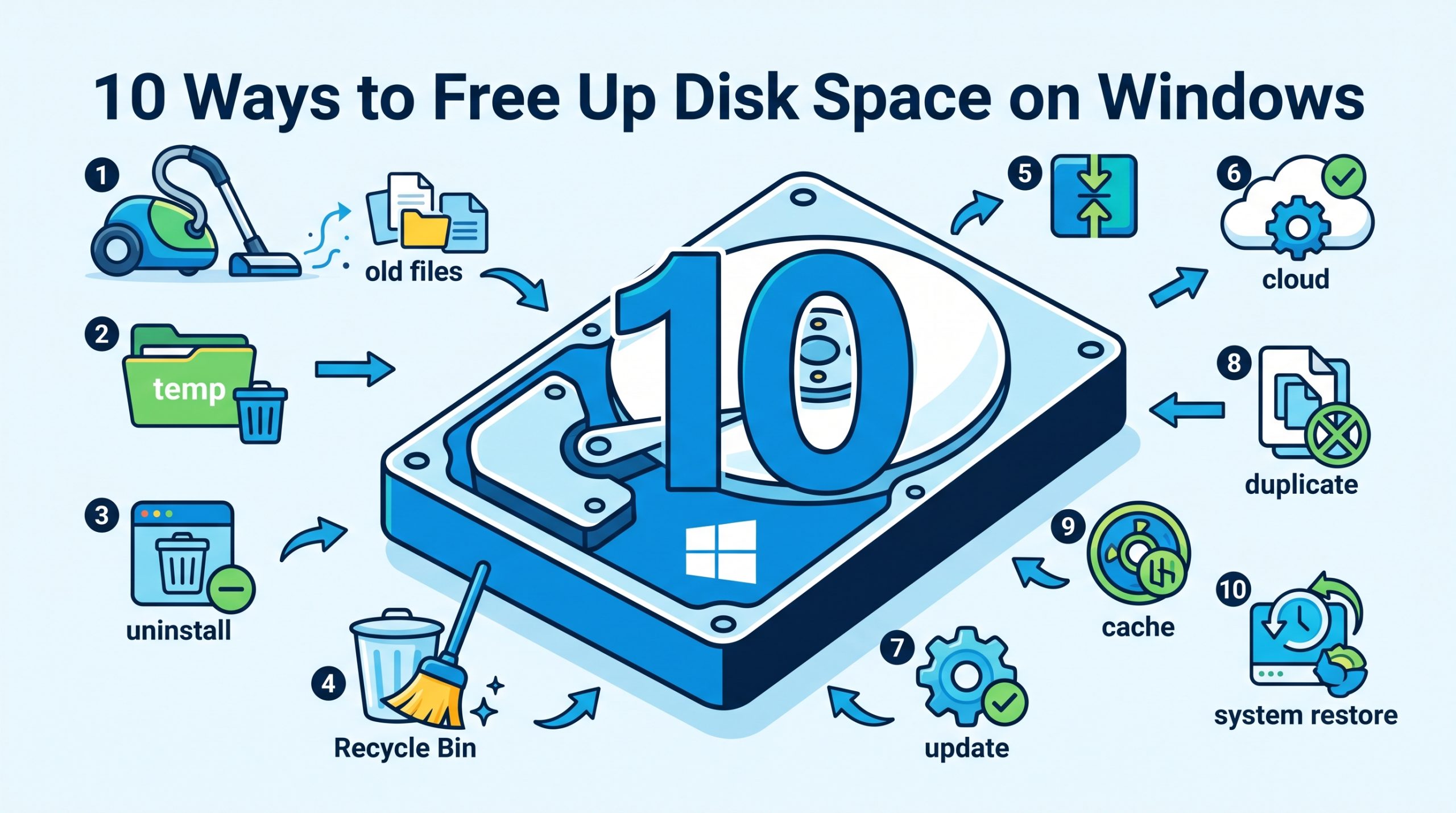
When your drive fills up, Windows struggles to create temp files and virtual memory — slowing everything down. A full drive can also prevent Windows Updates from installing. Here are 10 safe ways to reclaim significant disk space.
1. Run Disk Cleanup (With System Files)
Open as Administrator
Search for “Disk Cleanup” in Start Menu, right-click it and choose Run as administrator.
Click “Clean up system files”
This unlocks additional categories like Windows Update Cleanup which can free 5-15GB alone.
Select all safe categories and click OK
Check: Temporary files, Windows Update Cleanup, Delivery Optimization Files, Recycle Bin, and Temporary Internet Files.
2. Enable and Use Storage Sense
- Go to Settings > System > Storage
- Turn on Storage Sense
- Configure it to run automatically (monthly) and delete temp files and Recycle Bin items older than 30 days
3. Uninstall Unused Applications
Go to Settings > Apps > Installed apps. Sort by Size (largest first). Uninstall games, old programs, and anything you no longer use. Unused games especially can take 20-100GB each.
4. Delete the Hibernation File
The hibernation file (hiberfil.sys) is the size of your installed RAM (4-16GB). If you don’t use hibernate mode, delete it:
:: Run Command Prompt as Administrator

powercfg /hibernate off
This immediately deletes hiberfil.sys and disables hibernation. You can re-enable it with powercfg /hibernate on.
5. Clear the Windows Temp Folder
Open user Temp folder
Press Win + R, type %temp%, press Enter. Select all (Ctrl + A) and delete. Skip files “in use.”
Open system Temp folder
Press Win + R, type C:WindowsTemp, press Enter. Delete all contents.
6. Remove Old Windows Versions
After a major Windows feature update, the old version is kept for 10 days as a rollback option. If you are happy with the update, delete it via Disk Cleanup > Previous Windows installations (appears in Disk Cleanup after large updates). Can free 10-30GB.
7. Move Files to Cloud or External Drive
Videos, photos, and large documents are best stored on cloud (OneDrive, Google Drive) or an external hard drive. Moving a single video folder can free gigabytes instantly.
8. Compress Old Files
:: Compress a folder you rarely access (run as admin)

compact /c /s:"C:OldDocuments"
Windows NTFS compression reduces file sizes while keeping them accessible normally. Good for archives you want to keep but rarely open.
9. Clear Browser Cache
Each browser maintains a cache that can grow to several gigabytes:
- Chrome: Settings > Privacy and security > Clear browsing data > Cached images and files
- Edge: Settings > Privacy, search > Choose what to clear > Cached images and files
- Firefox: Settings > Privacy & Security > Clear Data
10. Find Large Hidden Files with WinDirStat
Download the free WinDirStat app. It visualizes your entire drive usage as a colorful treemap, showing exactly which files and folders are largest. It often reveals huge files you forgot about — old game installers, backup archives, or virtual machine images.
Start with Disk Cleanup (Method 1) and uninstalling unused apps (Method 3). Together these usually free 10-40GB in under 10 minutes. Add WinDirStat to find anything else that’s hiding.
zSmartFix Editorial Team
Step-by-step technical guides tested on real hardware. Our guides are independently written and freely accessible to everyone.
Leave a Reply