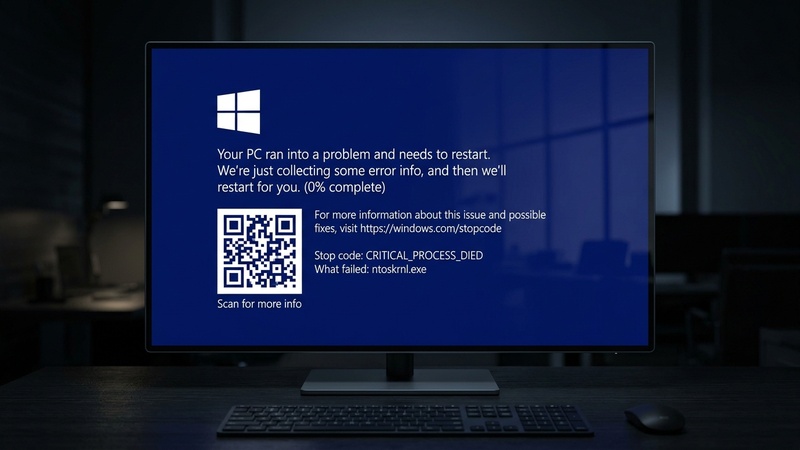

The Blue Screen of Death (BSOD) is Windows’ emergency stop mechanism — it crashes the system deliberately to prevent further damage when something goes critically wrong. While it looks catastrophic, most BSODs are caused by fixable software or driver issues, not hardware failure.
Step 1: Understanding BSOD Error Codes
Every BSOD displays an error code. This is your most important diagnostic clue. Common codes and their meanings:
- CRITICAL_PROCESS_DIED — A critical system process crashed; usually corrupted system files or recent software
- MEMORY_MANAGEMENT — Faulty RAM or memory-related software bug
- DRIVER_IRQL_NOT_LESS_OR_EQUAL — Outdated, corrupted, or incompatible driver
- SYSTEM_THREAD_EXCEPTION_NOT_HANDLED — Driver conflict, often shows the problematic driver file name
- NTFS_FILE_SYSTEM — Hard drive failure or severe file system corruption
- PAGE_FAULT_IN_NONPAGED_AREA — Bad RAM or driver trying to access unavailable memory
- WHEA_UNCORRECTABLE_ERROR — Hardware failure, overheating, or overclocking issue
Take a photo of the BSOD screen with your phone if it flashes too quickly. Alternatively, search the exact error code online — Microsoft’s documentation explains each one in detail.
Fix 1: Update All Drivers
Driver-related BSODs account for the majority of cases, especially GPU drivers. Update these first:
- NVIDIA GPU: Download from nvidia.com/drivers
- AMD GPU: Download from amd.com/support
- Intel Graphics: Use Intel Driver & Support Assistant
- All other drivers: Use Device Manager (Win + X) and update each adapter
If the BSOD started right after a driver update, try rolling it back: Device Manager → right-click device → Properties → Driver tab → Roll Back Driver.
Fix 2: Run Windows Memory Diagnostic
Faulty RAM causes many BSOD types including MEMORY_MANAGEMENT and PAGE_FAULT_IN_NONPAGED_AREA.
Open Windows Memory Diagnostic
Press Win + R, type mdsched.exe, press Enter.
Schedule the test
Select Restart now and check for problems. Your PC will restart and run a RAM test that takes 10–30 minutes.
Review results
After restart, check the notification area for results. If errors are found, try reseating your RAM sticks (removing and reinserting them) or testing each stick individually.
Fix 3: Run SFC and DISM
Corrupted system files can trigger CRITICAL_PROCESS_DIED and similar errors. Run these in an elevated Command Prompt:
sfc /scannowWait for it to complete (10-15 min), then run:
DISM /Online /Cleanup-Image /RestoreHealthRestart after both complete and see if the BSOD returns.
Fix 4: Check Hard Drive Health
NTFS_FILE_SYSTEM and disk-related BSODs often indicate a failing drive. Run Check Disk:
chkdsk C: /f /r /xYou’ll be prompted to schedule it for the next restart. Type Y and restart. This scan can take 30-60 minutes but will fix bad sectors and file system errors.
For deeper health analysis, download CrystalDiskInfo (free) to check your hard drive’s S.M.A.R.T. status. A “Caution” or “Bad” rating means the drive is failing and needs replacement soon.
Fix 5: Uninstall Recent Software or Windows Updates
BSODs that started recently often correlate with a new installation:
- Uninstall recently installed software: Settings > Apps > Installed apps → sort by install date
- Uninstall recent Windows updates: Settings > Windows Update > Update history > Uninstall updates
Fix 6: Use Event Viewer to Find the Cause
Event Viewer contains detailed crash logs that often name the exact driver or file that caused the BSOD.
Open Event Viewer
Press Win + X and select Event Viewer.
Find crash events
Go to Windows Logs > System. Look for Critical or Error level events near the time of the crash.
Search the error details
Click on a critical event to read the details. The description often includes a file name (like ntoskrnl.exe or a specific driver file). Search for this file name online to find specific solutions.
When It’s a Hardware Problem
Consider hardware diagnosis if:
- BSODs happen before Windows even loads
- Memory Diagnostic finds errors
- CrystalDiskInfo shows drive health warnings
- Your PC runs very hot (check CPU/GPU temps with HWiNFO64)
- BSODs occur during graphic-intensive tasks (GPU issue)
If your PC runs above 90°C under load, overheating is likely causing crashes. Clean out dust from vents and fans, and consider reapplying thermal paste to the CPU/GPU.
Keep your PC stable and fast:
zSmartFix Editorial Team
Step-by-step technical guides tested on real hardware. Our guides are independently written and freely accessible to everyone.
Leave a Reply