
- Why Does Windows Update Get Stuck?
- Fix 1: Run the Windows Update Troubleshooter
- Fix 2: Restart Windows Update Services
- Fix 3: Clear the Windows Update Cache
- Fix 4: Run SFC and DISM
- Fix 5: Disable Your Antivirus Temporarily
- Fix 6: Use the Windows Update Assistant
- Fix 7: Perform a Clean Boot
- Prevention Tips
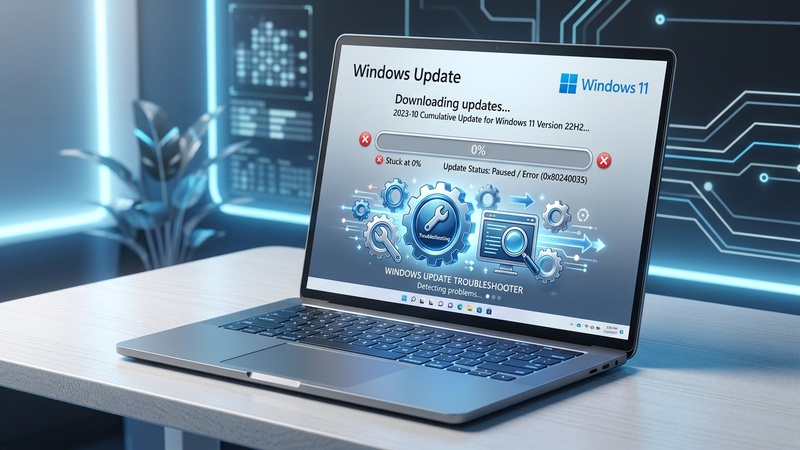
Few things are more frustrating than watching Windows Update sit at 0% for an hour with no sign of progress. You might see the spinning circle, a message like “Downloading updates — 0%”, or the update might appear to be running but nothing actually happens.
The good news: this is one of the most common Windows problems, and it is almost always fixable without reinstalling Windows. Let’s walk through every proven solution, starting from the easiest.
First, give Windows at least 2 hours before concluding it’s stuck — some large updates (especially cumulative updates) download and prepare slowly in the background. If it truly hasn’t moved after that, proceed with the fixes below.
Why Does Windows Update Get Stuck?
Windows Update can get stuck for several reasons:
- Corrupted update cache — Old, incomplete download files are blocking new ones
- Windows Update services not running — Required background services are stopped or crashed
- System file corruption — Damaged Windows system files interfere with the update process
- Antivirus interference — Some security software blocks update files
- Insufficient disk space — Updates need free space to download and install
- Slow or interrupted internet connection — The download stalls without an obvious error
Fix 1: Run the Windows Update Troubleshooter
Windows includes a built-in troubleshooter designed specifically for update problems. It can automatically detect and fix many common issues.
Open Windows Settings
Press Windows + I to open Settings.
Navigate to Troubleshoot
Go to System > Troubleshoot > Other troubleshooters (Windows 11) or Update & Security > Troubleshoot > Additional troubleshooters (Windows 10).
Run Windows Update troubleshooter
Find Windows Update in the list and click Run. Follow the on-screen instructions.
Apply fixes and restart
If issues are found, apply the suggested fixes, then restart your PC and try Windows Update again.
Fix 2: Restart Windows Update Services
Windows Update relies on several background services. If any of them have crashed or stopped, updates won’t work.
Open Services
Press Windows + R, type services.msc, and press Enter.
Restart key services
Find and right-click each of these services, then select Restart: Windows Update, Background Intelligent Transfer Service (BITS), and Cryptographic Services.
Try updating again
Close Services, go back to Windows Update settings, and try downloading updates again.
Fix 3: Clear the Windows Update Cache
Corrupted or incomplete update files stored in the SoftwareDistribution folder are one of the most common causes of updates getting stuck.
This will delete cached update files. Your PC is safe — Windows will re-download whatever it needs — but make sure you run this process while no updates are actively installing.
Open Command Prompt as Administrator
Press Windows + S, type cmd, right-click Command Prompt, and select Run as administrator.
Stop Windows Update services
Type each command and press Enter after each one:
net stop wuauserv

net stop cryptSvc

net stop bits

net stop msiserverDelete the update cache
Run this command to rename (effectively clearing) the SoftwareDistribution folder:
ren C:WindowsSoftwareDistribution SoftwareDistribution.old

ren C:WindowsSystem32catroot2 catroot2.oldRestart the services
Start all the services again:
net start wuauserv

net start cryptSvc

net start bits

net start msiserverRestart and try again
Restart your PC and check for updates.
Fix 4: Run SFC and DISM
Corrupted system files can prevent Windows Update from working. The System File Checker (SFC) and DISM tools can scan and repair them.
Open elevated Command Prompt
Right-click Start and select Windows Terminal (Admin) or Command Prompt (Admin).
Run SFC scan
This may take 10–15 minutes. Do not close the window.
sfc /scannowRun DISM repair
After SFC completes, run DISM (requires internet connection):
DISM /Online /Cleanup-Image /RestoreHealthRestart your PC
After both scans complete, restart and try Windows Update again.
Fix 5: Disable Your Antivirus Temporarily
Some antivirus programs can interfere with Windows Update by blocking files it needs to download. Temporarily disabling your antivirus (not Windows Defender) while updating can resolve this.
- Right-click your antivirus icon in the system tray
- Look for an option like “Disable protection” or “Pause protection for 15 minutes”
- Try running Windows Update while it’s disabled
- Re-enable antivirus protection immediately after
Fix 6: Use the Windows Update Assistant
If Windows Update in Settings is not working, you can use Microsoft’s dedicated Update Assistant tool to force an update directly.
- Go to microsoft.com/software-download
- Download the Windows 11 Installation Assistant (or Windows 10 equivalent)
- Run it as administrator and follow the prompts
- This bypasses the normal Windows Update channel entirely
Fix 7: Perform a Clean Boot
A clean boot starts Windows with only essential services and drivers, which can identify if a third-party program is interfering with updates.
Open System Configuration
Press Windows + R, type msconfig, press Enter.
Disable non-Microsoft services
On the Services tab, check Hide all Microsoft services, then click Disable all.
Disable startup programs
On the Startup tab, click Open Task Manager, and disable all startup items.
Restart and try updating
Restart your PC in clean boot state and try running Windows Update.
Prevention Tips
- Keep at least 10GB free on your system drive at all times
- Don’t pause updates for too long — updates pile up and can cause issues
- Restart regularly — pending updates often complete during a restart
- Run SFC monthly to catch system file corruption early
Start with the Troubleshooter (Fix 1), then try clearing the update cache (Fix 3) — these two fixes solve 90% of stuck Windows Update issues. If those don’t work, SFC + DISM (Fix 4) almost always resolves the remaining cases.
Was this guide helpful? Check out more Windows fixes:
zSmartFix Editorial Team
Step-by-step technical guides tested on real hardware. Our guides are independently written and freely accessible to everyone.
Leave a Reply